Getting Started
First thing to consider is your website structure. Visit the demo page to see what options are possible and decide what you are about to use. Let’s start by setting up the homepage, blog and portfolio.
Note
This documentation assumes the theme is installed on a fresh WordPress installation. If that is not the case, some of the walkthroughs and images may look slightly different, but you should still be able to do everything suggested.
Setting Up Homepage
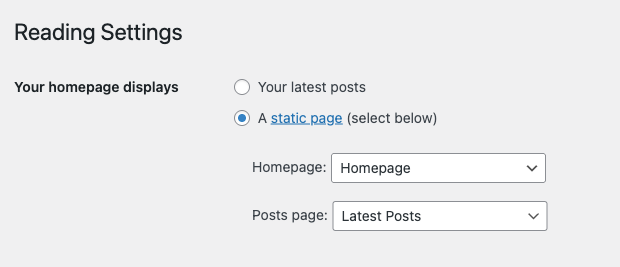 Start by creating a new page which will serve as your homepage. Go to
 Pages > Add New, set the title and click Publish. Now navigate to Settings > Reading and choose A static page next to the Your homepage displays option. From the Homepage select box choose the page that you have just created. Save the changes.
Now the page you have just created will act as your homepage. Next thing is to customize it. Fluxus theme suggests 3 options for a homepage: Full Page Slider, Grid Portfolio and Horizontal Portfolio. Pick the one you prefer and go to the corresponding section of this documentation to find out how to set it up.
Setting Up Blog
Create a new page by going to Pages > Add New, specify page name and click Publish. Now navigate to Settings > Reading and from the Posts page select box choose the page you have just created. Save changes. Now if you visit the page, you should see a list of your blog posts (probably not many at the time).
Setting Up Portfolio
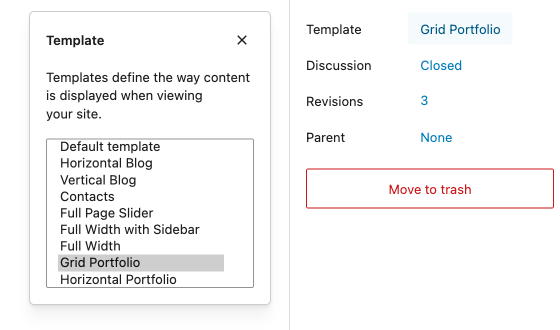 Create a new page by going to
 Pages > Add New, specify the name and locate the Template option in the page settings sidebar. Select the template according to the type of Portfolio you would like to use (Horizontal Portfolio or Grid Portfolio). You can change it anytime. Publish the page and head to Portfolio section of this documentation to find out how to add portfolio items.
Navigation Menus
Tip
See this WordPress documentation for more info on administrating menus.
Fluxus theme offers three areas for navigation menus.
- Header Primary Menu - displayed at the top left.
- Header Secondary Menu - displayed at the top right.
- Footer Primary Menu - displayed on the right side of the footer.
Go to Appearance > Menus and add previously created Homepage, Portfolio and Blog pages to the main navigation menu.